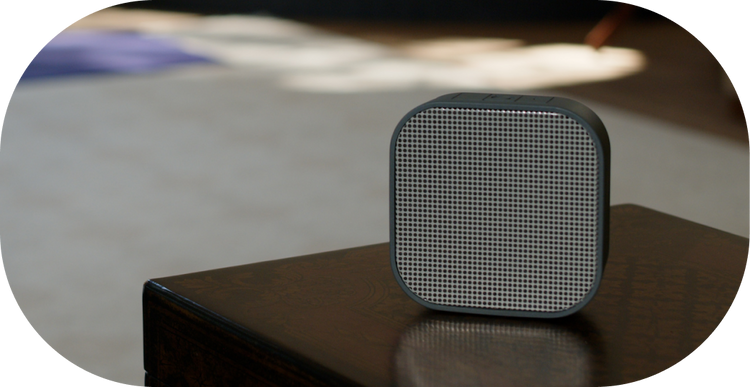
Setting up a multi Bluetooth speaker system using AirPlay on a Mac can transform your listening experience, creating a more immersive audio environment. Whether you’re hosting a party or simply enjoying music throughout your home, connecting multiple speakers allows for seamless audio distribution. This guide will walk you through the step-by-step process of setting up your system, ensuring you can enjoy high-quality sound effortlessly.
Step 1: Ensure Compatibility
Before diving into the setup, verify that all your Bluetooth speakers are compatible with AirPlay. This will require checking the specifications of each device to confirm they can be connected and controlled through AirPlay on a Mac.
- Ensure your Mac is running macOS Mojave or later for optimal compatibility.
- Verify that your speakers support Bluetooth and AirPlay connections.
Step 2: Prepare Your Mac
The next step involves preparing your Mac for a smooth audio streaming experience:
- Open System Preferences on your Mac and navigate to the Sound settings.
- Ensure Bluetooth is enabled by going to Bluetooth settings in System Preferences.
- Connect to your home sound system via AirPlay by selecting the appropriate option from the menu bar or within the Sound settings.
Step 3: Pair Your Bluetooth Speakers
To connect multiple speakers using AirPlay, follow these steps:
Pairing Each Speaker
- Switch on each Bluetooth speaker and put it in pairing mode?refer to the speaker’s manual for specific instructions.
- On your Mac, go to Bluetooth settings and pair each speaker individually.
Set Up AirPlay
- Once each speaker is paired via Bluetooth, open the Music app on your Mac.
- Click on the AirPlay icon next to the volume slider and select each paired speaker to include it in your audio output.
Step 4: Configure Audio Settings
Fine-tuning your audio settings can significantly enhance your listening experience:
- In the Audio MIDI Setup application on your Mac, create a new multi-output device.
- Select all the connected speakers to be part of this multi-output device.
- Set your newly created multi-output device as the primary audio output in System Preferences under Sound settings.
Step 5: Test Your Setup
With your speakers connected, it?s time to test the setup:
- Play a song or audio file on your Mac to check if the sound is streaming through all connected speakers.
- Adjust the volume and balance settings as needed to ensure each speaker is producing sound at the desired level.
Troubleshooting Common Issues
If you encounter issues during setup, consider the following troubleshooting tips:
- Ensure all speakers are within the Bluetooth range of your Mac.
- Restart your Mac and reconnect the speakers if any connectivity issues arise.
- For persistent issues, consult the user manuals of your speakers or seek assistance from online forums.
By following these steps, setting up multi Bluetooth speakers with AirPlay on a Mac is a straightforward process. Enjoy the seamless integration and superior audio quality that this setup offers, enhancing your overall listening experience in any environment.